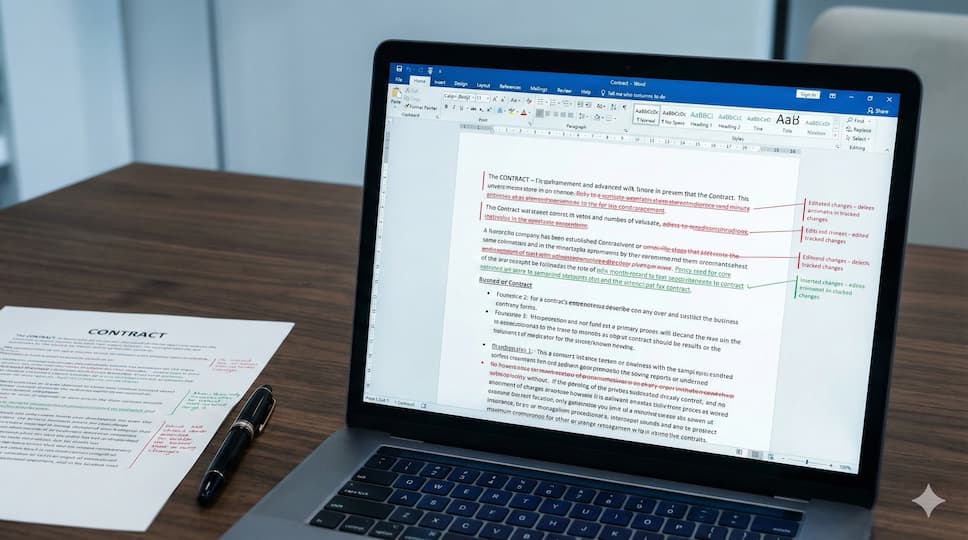
Here's a scenario every lawyer knows: you receive a 40-page contract from opposing counsel. You need to review it, mark up your changes, and send it back with clean Word track changes. The other side expects to open it in Word and see red text, strikethroughs, and insertions with your name attached. Real track changes that they can accept or reject individually.
The frustrating part: AI can help you identify what to change and even draft the new language. But producing the actual Word document with track changes enabled? That's traditionally meant opening Word, turning on Track Changes, and retyping everything by hand. Ninety minutes of manual data entry to apply changes that AI identified in five.
That's the problem Ezel's redlining solves.
Why Redlining Matters So Much
Legal document exchange follows a specific protocol that hasn't changed in decades:
- Side A sends a clean draft
- Side B reviews, makes changes with Track Changes on, and returns the markup
- Side A reviews the tracked changes, accepts or rejects each one
- Both sides iterate until they reach agreement
Every round produces a Word document with track changes. The changes show the other side's name as the author. The formatting is clean and professional. The document behaves exactly as expected in Word.
If your AI workflow can't produce this output, it breaks at the most important step — the handoff to the other side.
How AI Redlining Should Work
The right workflow combines AI speed with professional output:
Step 1: Establish Your Baseline
Start with the version you want to compare against. This might be:
- The draft opposing counsel sent you
- Your last version before internal review
- The version your client approved
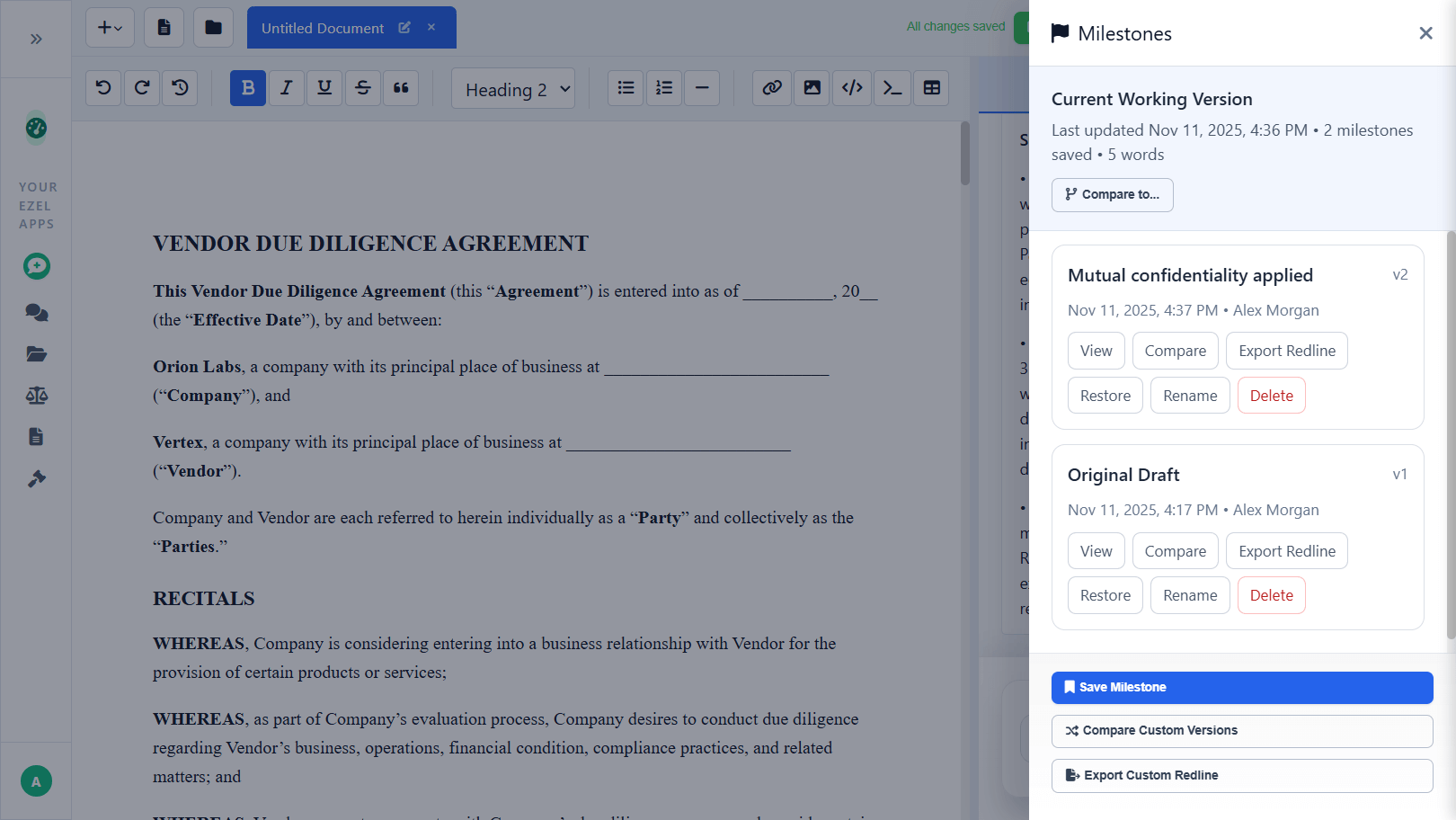
Save this as a milestone. Think of it as your "before" snapshot. You're creating a reference point that the system will compare against later.
Step 2: Make Your Changes
Now edit the document. You can do this manually, with AI assistance, or both:
Manual edits: Change language directly in the editor. Rewrite clauses, add provisions, delete sections.
AI-assisted edits: Tell the AI what you want changed in plain English:
"Replace the indemnification clause with mutual indemnification. Cap liability at 12 months of fees paid. Add a carve-out for IP infringement and gross negligence."
"Change the non-compete from 2 years to 12 months and limit the geographic scope to the state where the employee primarily worked."
"Add a data privacy section that addresses CCPA requirements for consumer data."
The AI makes the edits while you watch. Review each change, accept what works, modify what doesn't. Iterate until the document says exactly what you want.
Once you're satisfied with the changes, walk through each AI suggestion individually — accept, skip, or modify.
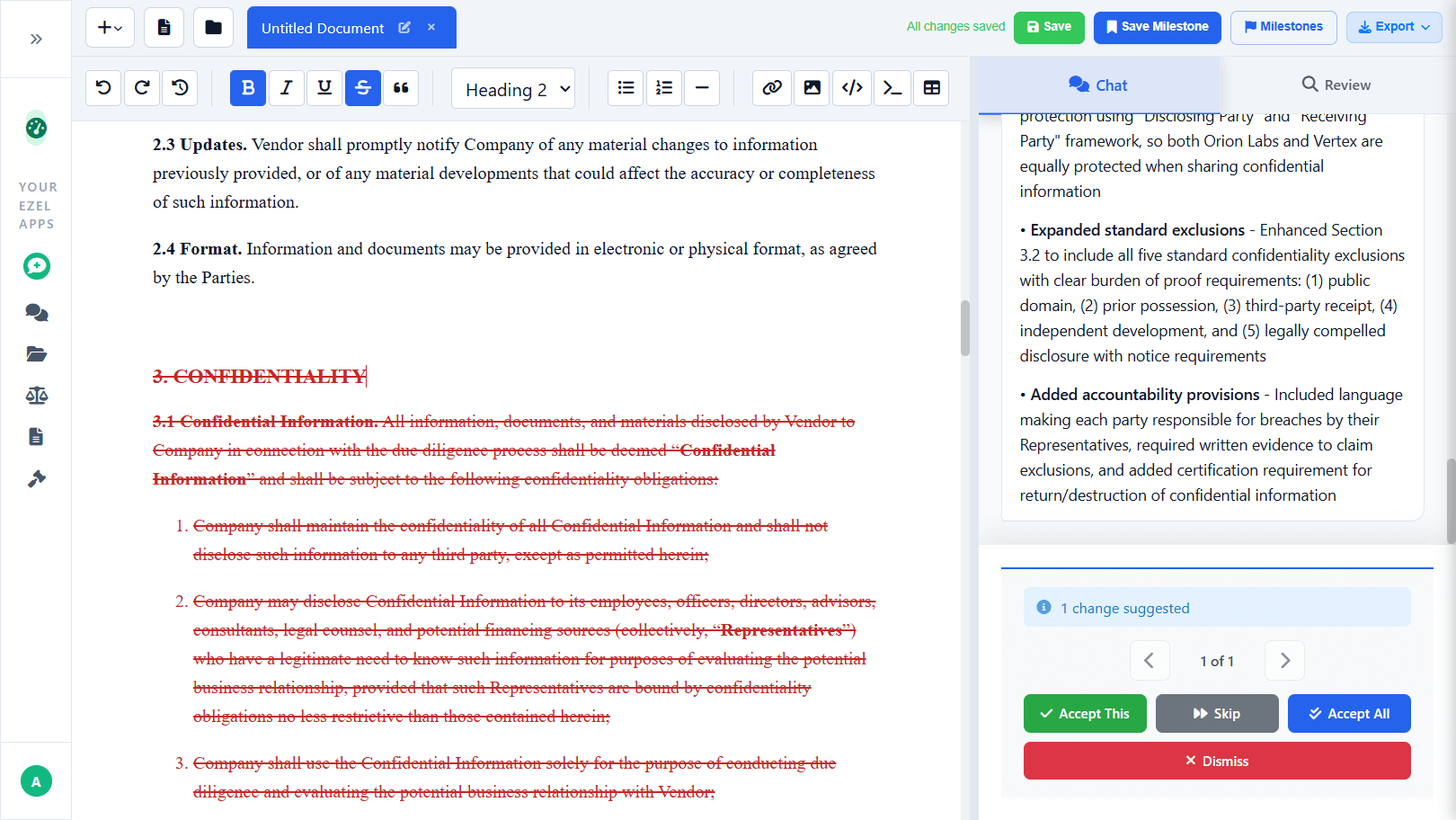
Step 3: Export the Redline
This is where it matters. When you're ready to send the document to the other side:
- Select the milestone you saved in Step 1
- Choose "Export Redline"
- Set the author name (your name as it should appear in the tracked changes)
- Download the .docx file
The exported document is a standard Microsoft Word file with real Track Changes enabled. When opposing counsel opens it:
- They see your changes marked in red (or whatever their Track Changes color is set to)
- Your name appears as the author of every change
- They can accept or reject individual changes
- The document behaves exactly like one edited manually in Word
- There are no formatting artifacts, no false changes, no missing revisions
Step 4: Iterate for Each Round
Negotiations often go through multiple rounds. After opposing counsel sends back their counter-markup:
- Upload their revised version
- Create a new milestone
- Make your next round of changes (manually or with AI)
- Export a new redline comparing against their version
- Send it back
Each round takes minutes instead of hours. The output is always clean, professional, and Word-compatible.
Why This Matters More Than You Think
Professional Credibility
Opposing counsel judges you by your documents. A clean, properly formatted redline signals competence and attention to detail. A document with formatting glitches, phantom changes, or broken track changes signals the opposite.
When your AI-generated redline is indistinguishable from manual Word editing, nobody questions your process. They focus on the substance of your changes, which is the only thing that should matter.
Time Savings That Are Actually Real
AI-assisted editing only saves time if the output is ready to send. If you still have to spend two hours reformatting in Word, the drafting speed doesn't matter.
With integrated redlining, the export is the final step:
| Task | Manual Process | AI with Redline Export |
|---|---|---|
| Review 40-page contract | 2-3 hours | 2-3 hours (AI helps, but you still review) |
| Mark up changes in Word | 1-2 hours | 10 minutes (AI applies changes) |
| Quality check formatting | 30 minutes | 5 minutes (export is clean) |
| Total per round | 3.5-5.5 hours | 2.5-3.5 hours |
The savings come from eliminating the manual markup step. Over multiple negotiation rounds, this compounds. A deal with 4 rounds of redlines might save you 6-8 hours total.
Consistency Across the Document
When you manually track changes in Word, you're human. You might:
- Forget to turn on Track Changes for one section
- Accidentally accept a change you meant to keep visible
- Make inconsistent edits (changing "shall" to "will" in one place but not another)
- Miss a defined term that needs updating throughout
AI applies changes systematically. If you say "change all instances of 'shall' to 'will,'" it catches every one. If you update a defined term, every reference gets updated. The result is a cleaner, more consistent document.
Version Control That Makes Sense
Every milestone is a snapshot of the entire document. You can:
- Compare any two versions side by side
- See exactly what changed between rounds
- Restore a previous version if negotiations go sideways
- Maintain a complete history of the document's evolution
In traditional Word workflow, version control is a mess of files named "Contract_v3_FINAL_revised_ACTUALLY_FINAL.docx." Milestones replace this chaos with clean, named snapshots.
Real-World Scenarios
Scenario 1: M&A Purchase Agreement
You represent the buyer. Seller's counsel sends a 60-page stock purchase agreement.
- Upload the document to Ezel
- Create milestone: "Seller's Draft"
- Ask AI to review: "Identify provisions that are unfavorable to the buyer and suggest changes"
- AI flags 15 issues: broad indemnification, short survival periods, narrow rep & warranty coverage
- You decide which changes to make. Tell AI: "Extend the survival period for fundamental representations to 3 years. Add a specific indemnity for pre-closing tax liabilities. Cap the basket at 0.75% of purchase price."
- Review the changes, make additional manual edits
- Export redline with your name as author
- Send to seller's counsel
Seller's counsel opens it in Word. Clean track changes. Professional presentation. They never know (or care) that AI assisted with the markup.
Scenario 2: Employment Agreement Negotiation
A candidate's attorney sends back your standard employment agreement with their requested changes.
- Upload their markup
- Create milestone: "Candidate's Proposed Changes"
- Review their changes. Ask AI: "Summarize the key changes the candidate is requesting"
- AI identifies: extended severance, accelerated vesting, broader non-compete carve-outs
- You decide your positions. Tell AI: "Accept the 6-month severance but add a release requirement. Reject the non-compete changes. Counter their accelerated vesting with double-trigger acceleration only."
- Export redline showing your counter-positions
- Send to candidate's counsel
Scenario 3: Lease Renewal
Your client's commercial lease is up for renewal. The landlord sends a proposed amendment.
- Upload the amendment
- Create milestone: "Landlord's Proposal"
- Ask AI: "Compare the renewal terms to the original lease. Identify any terms that are less favorable than the current lease."
- AI flags: rent increase above market, reduced tenant improvement allowance, new personal guarantee requirement
- Make your counter-edits with AI assistance
- Export clean redline
- Send to landlord's attorney
What Professional-Grade Redlining Looks Like
The Features That Matter
-
Real Word Track Changes. The exported .docx should contain actual revision markup that Word renders natively — the kind opposing counsel can accept or reject individually.
-
Custom author attribution. Your name (or any name you specify) appears as the change author. This matters for multi-party negotiations where you might need different attribution.
-
Milestone-based comparison. Compare against any previous version — the original draft, the last round, or anything in between. You control which baseline the redline is generated from.
-
No formatting artifacts. The exported document shouldn't have phantom changes (showing formatting modifications you didn't make), missing spaces, or broken styles. It should be identical to what you'd produce by editing manually in Word.
-
Iteration support. Make changes, review, make more changes, and export only when you're ready. The tool should support your editing workflow, not force you into a single-pass process.
Common Concerns
"Will opposing counsel know I used AI?"
No. The exported document is a standard .docx file with standard Word track changes. There's no metadata indicating AI involvement. The changes look exactly like manual edits because, from Word's perspective, they are manual edits. Your name appears as the author, the formatting is native, and the revision history is clean.
Whether to disclose AI use is an ethical question separate from capability. Some jurisdictions are developing disclosure requirements. But the document itself won't reveal your process.
"What about complex formatting?"
Tables, numbered lists, defined terms, cross-references, exhibits, and schedules are all preserved during the round-trip. The redline maintains the full document structure — formatting, styles, and layout all carry through. If the original document has specific formatting, the export preserves it.
"Can I still use Word for some edits?"
Yes. You don't have to do everything in the AI tool. Edit in the AI editor, export to Word, make additional changes in Word if you prefer. Or do the initial AI-assisted edit, then polish in Word before sending. The tools are complementary.
"What about collaborative editing?"
Share documents with colleagues. Everyone sees the same milestones and version history. When the partner reviews the associate's draft, all changes are tracked. When the document is ready for opposing counsel, export includes all tracked changes with appropriate attribution.
The Bottom Line
Legal negotiations run on Word documents with track changes. This isn't going to change anytime soon.
Ezel's redlining lets you:
- Review and edit contracts faster with AI assistance
- Export Word documents with real, professional track changes
- Maintain clean version control across negotiation rounds
- Present work that's indistinguishable from manual editing
- Spend your time on substance instead of formatting
The test is simple: send an AI-generated redline to opposing counsel. If they can't tell the difference from a manually edited Word document, the tool works. If they can, it doesn't.
Every hour you spend manually entering tracked changes in Word is an hour you could spend on strategy, client communication, or the next matter on your desk. The technology exists to eliminate that busywork. The question is whether you're still doing it by hand.
Ready to see AI redlining that actually works? Try Ezel and export your first Word-compatible redline in minutes. Opposing counsel won't know the difference.